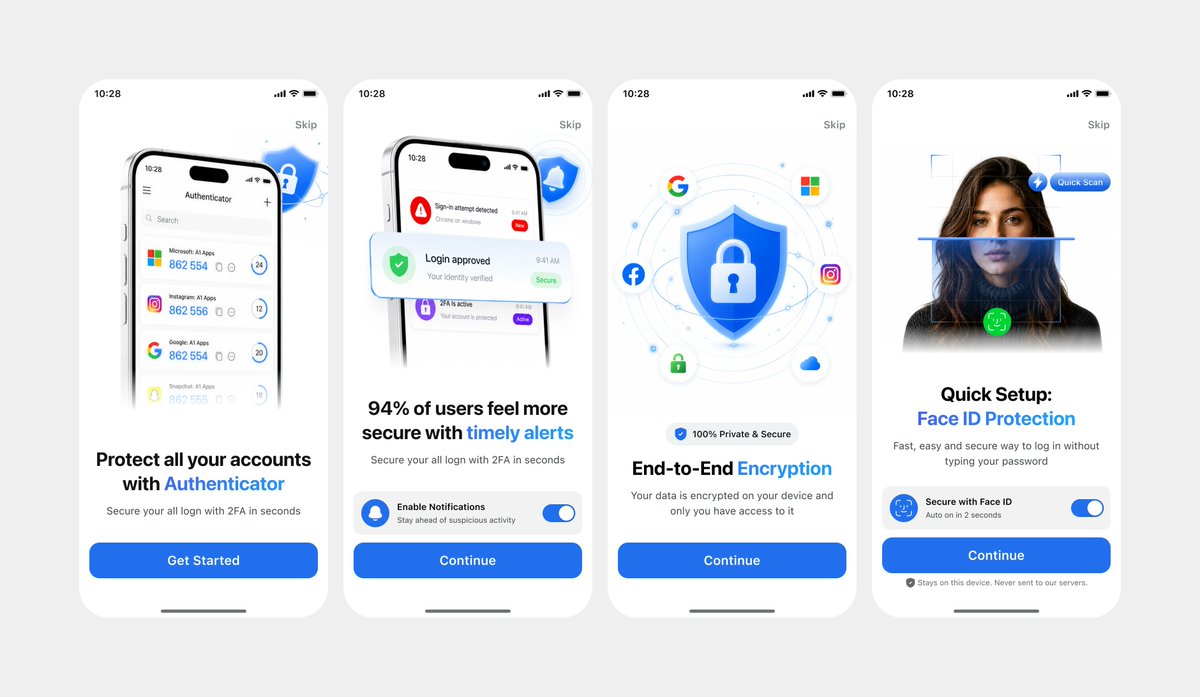
简洁的 Authenticator 入门引导 UI
根据拍摄的 UI 参考图,生成精美的四屏移动端 Authenticator 入门引导模型,适用于应用演示或设计迭代。
Using REFERENCE_1 as the primary UI reference and REFERENCE_0 only for the darker variant details if needed, recreate the mobile onboarding flow as a clean, front-facing design mockup instead of a photographed laptop screen. Extract and straighten the four iPhone-style screens, remove all camera perspective, glare, browser chrome, laptop edges, and surrounding environment, and place the screens evenly spaced on a light gray canvas. Keep the same white/light theme, rounded phone cards, blue security branding, typography hierarchy, icons, illustrations, and CTA style. Produce exactly 4 onboarding screens from left to right: 1) authenticator accounts list with headline “Protect all your accounts with Authenticator” and CTA “Get Started”; 2) security alert notifications with headline “94% of users feel more secure with timely alerts” and CTA “Continue”; 3) shield/lock encryption illustration with headline “End-to-End Encryption” and CTA “Continue”; 4) Face ID quick setup with the portrait/scan graphic, headline “Quick Setup: Face ID Protection”, secure Face ID toggle card, small privacy note, and CTA “Continue”. Use {argument name="primary color" default="bright blue"} as the main accent color, keep the app name as {argument name="app name" default="Authenticator"}, and keep the status time as {argument name="status time" default="10:28"}. Make the result look like a polished Figma export/product presentation, crisp and high resolution, with no real-world photo artifacts.以 REFERENCE_1 作为主要 UI 参考,仅在需要深色变体细节时使用 REFERENCE_0,将移动端入门引导流程重新创建为简洁的正面设计模型,而非拍摄的笔记本电脑屏幕。提取并拉直四个 iPhone 风格的屏幕,去除所有相机透视、反光、浏览器边框、笔记本电脑边缘及周围环境,并将屏幕均匀地放置在浅灰色画布上。保持原有的白色/浅色主题、圆角手机卡片、蓝色安全品牌标识、排版层级、图标、插图以及 CTA 样式。从左到右精确生成 4 个入门引导屏幕:1) Authenticator 账户列表,标题为“Protect all your accounts with Authenticator”,CTA 为“Get Started”;2) 安全警报通知,标题为“94% of users feel more secure with timely alerts”,CTA 为“Continue”;3) 盾牌/锁加密插图,标题为“End-to-End Encryption”,CTA 为“Continue”;4) Face ID 快速设置,包含人像/扫描图形、标题“Quick Setup: Face ID Protection”、安全的 Face ID 开关卡片、隐私说明及 CTA“Continue”。使用 {argument name="primary color" default="bright blue"} 作为主要强调色,保留应用名称为 {argument name="app name" default="Authenticator"},并将状态栏时间保留为 {argument name="status time" default="10:28"}。使最终效果看起来像精美的 Figma 导出图或产品演示,清晰且高分辨率,不含任何现实照片的瑕疵。